
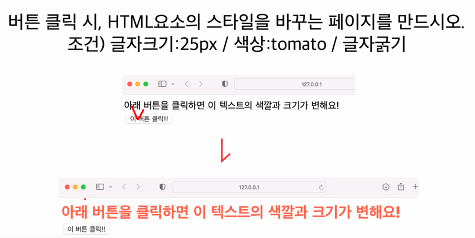
스타일 변경 실습1
<!DOCTYPE html>
<html lang="en">
<head>
    <meta charset="UTF-8">
    <meta http-equiv="X-UA-Compatible" content="IE=edge">
    <meta name="viewport" content="width=device-width, initial-scale=1.0">
    <title>Document</title>
</head>
<body>
    <span id="span1">아래 버튼을 클릭하면 이
        텍스트의 색깔과 크기가 변해요!</span>
    <br>
    <button onclick="ch()">이 버튼 클릭!!</button>

    <script>
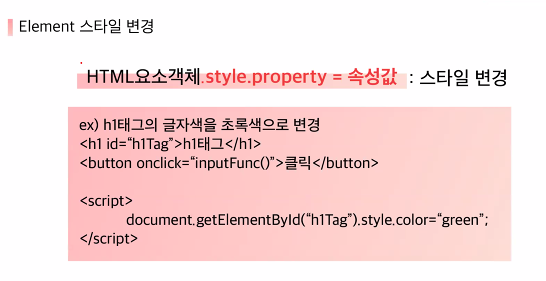
        // HTML 요소의 스타일을 변경해주고 싶다면?
        // .style.속성이름 = "속성값"
        // 속성이름 cameCase 사용한다
        // ex) font-size -> fontSize
        let ch=()=>{
            let span = document.getElementById('span1')
            span.style.color = 'tomato'
            span.style.fontSize = '25px'
            // 굵기 bold, 100~900
            span.style.fontWeight = 900

        }


    </script>
</body>
</html>
스타일 변경 실습2

<!DOCTYPE html>
<html lang="en">
<head>
    <meta charset="UTF-8">
    <meta http-equiv="X-UA-Compatible" content="IE=edge">
    <meta name="viewport" content="width=device-width, initial-scale=1.0">
    <title>Document</title>
    <style>
        div{
            width: 100px;
            height: 100px;
        }
        #redBox{
            background-color: red;
        }
        #blueBox{
            background-color: blue;
        }
        #greenBox{
            background-color: green;
        }
        #grayBox{
            background-color: gray;
        }


    </style>
</head>
<body>
    <div id="redBox"></div>
    <div id="blueBox"></div>
    <div id="greenBox"></div>
    <div id="grayBox"></div>
    <button onclick="margin()">이동하기!</button>
    <button onclick="radius()">둥글게!</button>

    <script>
        // Case01) id 이용하기
        let redBox = document.getElementById('redBox')
        let blueBox = document.getElementById('blueBox')
        let greenBox = document.getElementById('greenBox')
        let grayBox = document.getElementById('grayBox')

        // Case02) 유사 배열 이용하기
        let div = document.getElementsByTagName('div')

        // margin 함수
        // => 각각 왼쪽 마진을 100, 200, 300씩 주기
        let margin=()=>{
            blueBox.style.marginLeft = '100px'
            greenBox.style.marginLeft = '200px'
            grayBox.style.marginLeft = '300px'

        }

        // radius 함수
        // => 모든 요소들에게 50% 오른쪽 위, 왼쪽 아래
        let radius=()=>{
            // Case01) id 이용하기
            // redBox.style.borderTopRightRadius = "50%"
            // blueBox.style.borderTopRightRadius = "50%"
            // greenBox.style.borderTopRightRadius = "50%"
            // grayBox.style.borderTopRightRadius = "50%"

            // Case02) 유사 배열 이용하기
            // div[0].style.borderTopRightRadius = "50%"
            for(let i = 0; i<div.length; i++){
                div[i].style.borderTopRightRadius = "50%"
                div[i].style.borderBottomLeftRadius = "50%"
            }

        }

    </script>

</body>
</html>
728x90
반응형
'언어 > JavaScript' 카테고리의 다른 글
| JS_CallBack 함수 (0) | 2022.07.12 |
|---|---|
| JS_DOM_이미지 변경 (0) | 2022.07.11 |
| JS_DOM (0) | 2022.07.11 |
| JS_조건문 (0) | 2022.07.07 |
| JS_형변환 (0) | 2022.07.06 |